Guide
How to Find Your MacBook Model and Specifications
A model name alone is not enough for an accurate quote. Find the chip, memory, display size and storage in macOS.
Updated
Start with About This Mac
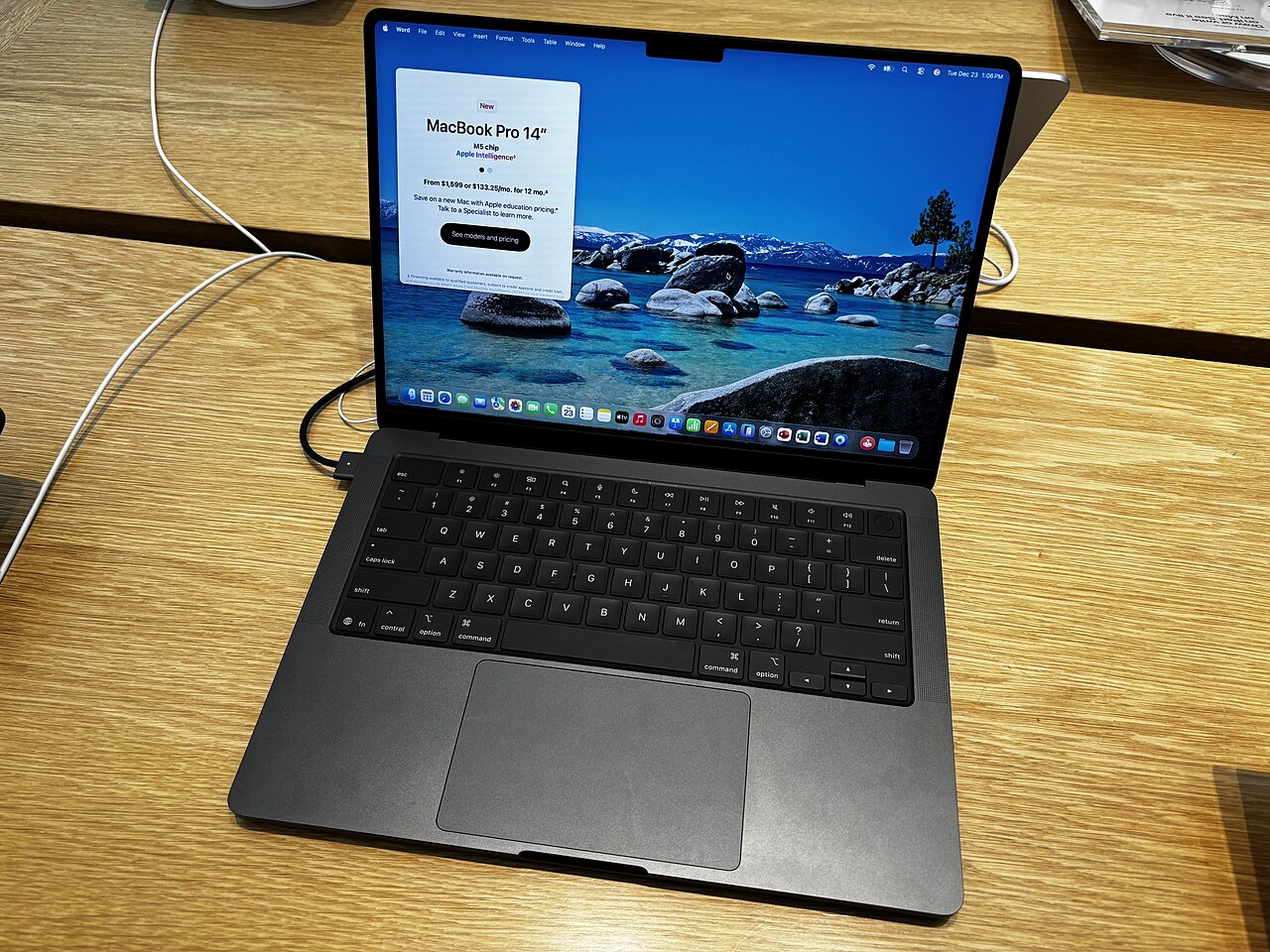
Choose the Apple menu → About This Mac. Depending on macOS, you will see a model name, chip or processor, memory and other details. Record whether it is an Air or Pro and the display size; configurations within the same year can be very different.
Find storage capacity
Open System Settings → General → Storage on recent macOS versions. Distinguish the drive's total capacity from the free space remaining. Removing files changes free space, not the storage configuration being valued.
Check battery information
Battery condition and cycle information may be available in System Settings and System Information → Power. Report service warnings or charging problems rather than interpreting one number as a guarantee of battery performance.
If the Mac will not start
Look for model information on the case or your original purchase record, keeping serial numbers private. Do not guess the chip from the case shape. Explain that the device does not boot and share only the details you can verify.
Reference
Apple's model-identification help is at https://support.apple.com/102767 for MacBook Pro and https://support.apple.com/102869 for MacBook Air. Exact model information helps avoid a quote for the wrong configuration.
Ready when you are